Hello everyone, i am uploading this blog nearly after a month.
I got the wifi security QML working and one of my MR got merged in production.
Here is my detailed work done during that phase
Refactored the Security 8021x. I have detailed explanation in my MR description.
MR - https://invent.kde.org/plasma/plasma-nm/-/merge_requests/566
Similarly, I refactored the cpp code for the wifisecurity part (WPA2, WPA3 Personal networks),
MR - https://invent.kde.org/plasma/plasma-nm/-/merge_requests/582
New QML designs and QML classes (which are still in review) for Wifi Security Tab and its combo box.
MR - https://invent.kde.org/plasma/plasma-nm/-/merge_requests/583
I have refactored almost 50% of the main KCM editor (the left side pane is completed)
MR - https://invent.kde.org/plasma/plasma-nm/-/merge_requests/584
What's Next?
I'm currently working on the remaining Network Connection tabs, such as General, Status, and others. There's still a lot of work ahead, but the progress so far has been encouraging.
I'll continue sharing updates as development progresses.
This is a weekly update from my Google Summer of Code 2026 project with
KDE, improving effect widgets in Kdenlive, a free and open source video
editor.
This week JB reviewed the per-channel tabs work on MR !887
and asked for four usability improvements. All four are now in the MR.
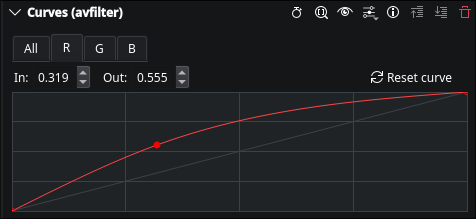
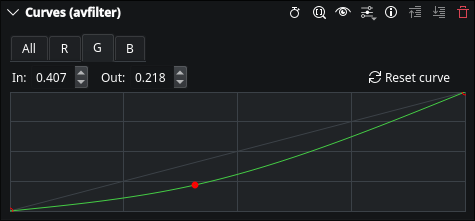
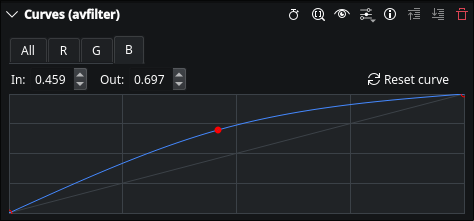
Per-channel curve colors
With four tabs (All/R/G/B) it wasn't obvious at a glance which channel
you were editing. JB suggested passing a color through the XML:
The color attribute is now read in AssetParameterModel and passed
down to KisCurveWidget, which uses it to draw that channel's curve
line instead of the default neutral color. All/R/G/B use
#CCCCCC/#FF4444/#44CC44/#4488FF.
Reset button for the active channel
A small button next to the point spinboxes resets only the currently
active tab's curve back to identity, going through
KisCurveWidget::reset(); the same model update path as a normal edit,
so it persists correctly on save.
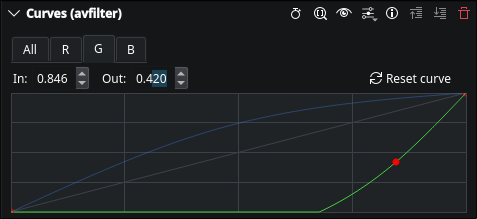
Input/Output value display
JB asked for the selected point's X/Y to be shown numerically, like
GIMP's curve editor, for finer adjustments and reproducibility. The
underlying DragValue spinboxes for this already existed in the curve
widget's .ui file but had never actually rendered, for either
frei0r.curves or avfilter.curves; a layout ordering bug going back
years. Rather than untangle that legacy code, I added two new
QDoubleSpinBox widgets directly, wired to the existing
currentPoint signal that fires on point selection/drag.
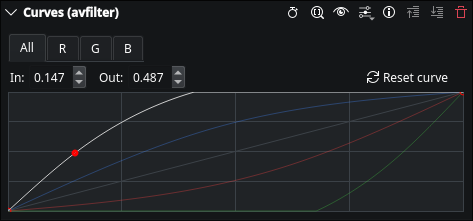
Ghost overlay of edited channels
JB also suggested copying GIMP's behavior of showing all non-null curves
at once, so you can see how channels relate while editing one. When a
channel's curve is active for editing, the other channels are now drawn
faintly, in their own colors, if they've been edited away from identity.
The active channel stays fully opaque on top.
All four changes are in MR !887.
48 unit test assertions pass; also fixed a test-environment issue where
avcurvetest wasn't loading the Kdenlive XML effect definitions, which
had been masking proper av_curve parameter typing.
JB's m_widgets null-placeholder feedback from last week is still
unresolved, waiting on his direction before touching it.
A new Craft cache has been published about a week ago. The update has already been rolled out to KDE's CD and Windows CI with the update to Qt 6.11 beeing the most important change.
Changes (highlights)
General
We added updated our base image to build the Linux cache from AlmaLinux 8.10 to AlmaLinux 9.8. This implies a newer minimum required GLIBC.
We did inital work on MSVC 2026 support, but given that it is not supported by Qt 6.11, we did not complete it yet.
Blueprints
OpenSSL 3.6.2
Qt 6.11.1
New Qt modules QtGraphs and QtQuick3D
FFmpeg 8.1.1
FFmpeg is build with libass and x264 on MSVC now
tiff 4.7.1
libffi 3.5.2
About KDE Craft
KDE Craft is an open source meta-build system and package manager. It manages dependencies and builds libraries and applications from source on Windows, macOS, Linux, FreeBSD and Android.
In 2015, some members of the KDE community began a conversation about where KDE was heading and how it would get there. That conversation became the seed of what is now KDE Goals - a community initiative to help guide KDE's efforts around shared objectives.
KDE Goals reaches its fifth cycle at a special milestone: KDE turns thirty this year. Thirty years of building software that puts people in control of their digital lives and enjoy freedom and privacy. The fourth cycle brought three goals that built toward this vision. Streamlined Application Development Experience focused on making KDE development smoother and more joyful. We Care About Your Input aimed to deliver a seamless out-of-the-box experience for input devices used by artists, gamers, and people with accessibility needs. KDE Needs You! worked on building a sustainable community growth targeting individuals and institutions alike. Checkout the one-year recap at Akademy last year.
Now, as that cycle draws to a close and launches us into the next upward spiral, it is time once again to ask: what matters most to KDE right now? What should the community rally behind for the next two years?
The floor is open. Dream big. The fifth cycle begins!
Join in
Anyone passionate about KDE and has a vision to share is welcome to submit a proposal. You do not have to be a developer to participate.
The past two weeks went by fast. The learnings I gained while building the toy project I experimented around with Qt during Contribution Period are quite useful now. In the second week of GSoC, I ported the TM Manager from a separate dialogbox to TM Tab. It was done mainly for ease and with the reasoning that everything related to TMs can be in a single place. I kept most of the things as is. A lot of thought went into the UI Design.
The TM Manager is currently a standalone window which is accesible from any tab.
The "Manage Translation Memories" option is already available in the Tools Menu and again in the ToolBar of TM Tab since it's specific to it.
After the changes, pressing F7 or "Translation Memory" option from Tools menu will directly lead to TM Manager too as it is set on the left of TM Tab with a QSplitter. I believe this takes away a little redundancy in the design. This change is also justified pertaing to the future changes regarding Multi-TM selection and quering.
The buttons restrict resizing the splitter horizontally. Intially I put all the actions in a QToolButton as I thought putting them in a right-click context menu might render them undiscovered. But such menus were already being used in some other parts of the app( and obviously other KDE apps).
From coding perspective, all I had to do was instantiate it in TM Tab instead. Since, it was no longer being used as a window( which would also have worked), it no longer inherits from KMainWindow. It used Grid Layout which I think is not exactly needed and just used a VBoxLayout for simplicity.
The splitter state is saved and restored using existing methods.
The obsolete references and methods for TM Manager are cleaned up.
During Week 3, I added checkboxes to DBFilesModel for TM selection which will be used in querying later in TM View for suggestions, autofill etc. and TM Tab for search. In th beginning of the project, I proposed adding another proxy layer over DBFilesModel for the checkboxes to not to disturb other things. But for ease of work, consistent architecture( couldn't find multiple proxy layers being used in the codebase) and with the solace that it won't impact other methods using DBFilesModel for their specific purpose, I went ahead to add checkboxes directly to it.
This is a deviation from my GSoc Proposal wherein I proposed to replace Combo Box with a List Widget having entries with checkboxes for Multi-TM selection. Since there would be TM dbs on the left of the tab anyways, I thought of enabling selection there itself, than to have two places(TM Manager and the List Widget) listing all the TMs.
Setting new flag for checking, showing checked state with data() and storing selected TM names to a set is done. The checked state persistence is to be worked upon. This is where I got stuck. TM names were to be saved and loaded from global and local config based on user's selection but when my mentor reviewed that this complex setup probably is not the best, we reached back to translators who originally requested the feature.
Penpot released their WebGL rendered (beta) for all users to test. This brought speed gains in rendering content on page and less lag when navigating. Frame rate was worked on and the overall interface appears faster. Pages load much faster than before, though there are still some rough edges. Overall, this is a gain for Ocean given it is a large design system.
We also experienced a few issues around speed, borders missing, and incomplete rendering. Those were reported promptly.
From what I can see in their development page, there is going to be a 16.1 release with a few fixes for the rendering engine that should address the most pressing issues around speed and rendering accuracy.
Issue with boolean shapes and Penpot crahes
It seemed for some time that the Penpot file for Ocean was crashing constantly. I wasn’t sure what the problem was but whenever there was an update to the tokens, the system would record the change and then crash.
After reviewing some of the error messages, it seemed that the problem was derived from shapes containing boolean operations. For example, the Date Picker component has a cutout circle (A difference boolean operation) to form the circular shape that highlights the current day. Those components appear left and right of the circular shape. Like half moons. These shapes were not flattened, they retained their boolean operation.
This is generally not an issue at all but it appears it was in Penpot. Once I identified the shapes with the boolean properties, I flattened them all to make sure they were no longer a problem, and then boom! The problem was gone.
However, one reason for keeping boolean operations in the components and not flattening is so that other designers can understand how some components are built and also have greater control over their design. When you flatten shapes, this makes it so that you loose the “how” a shape is built.
Even though crashing is resolved, it’s important to note that adding, editing, and removing tokens can take a long time.
Issue with Input Fields and Badges Set to Static
Whenever one changes the base component at the root of the component, it seems that propagation is not always clean and some aspects of the component do not update as they should. Some values tend to go back to being static when you mean for them to use the fill or hug property.
It appears that some recalculations do not always yield the right result on the components.
They are aware of these problems and are working to address them.
This issue happened in some components where the text fields inside a nested component were suppose to have the fill property, but in their wrapped component setup, the base component text field showed static. This made is so that input fields looked longer than they should have inside other bigger components.
It took me a minute to update them all but it seems that now the input fields and badges should behave properly.
After putting all these fixes in, I uploaded a new version of the Penpot file into gitlab so that others can update.
Figma Icon Flattening
We still have the issue that we can’t bring our icons to Penpot just yet. As we build more and more UI concepts for Ocean inside Penpot, we need to rely on our new Ocean icons to make sure they convey the right message in context.
I went back to the Figma file this week and created a copy of our monochrome icons and started the process of flattening them. This makes it so that it’s just a shape without layers or boolean operations. Just a raw flat svg file.
This type of operation is supported in Penpot, though we lose the fine control.
My desire is to bring some, if not all, of our monochrome icons into Penpot, even if they are flat, so that we can use them throughout our component UI more effectively.
I am still exploring whether this is a good idea overall but this should add a few more images to the Penpot file. Expect the Penpot library to grow. This is an experiment to see how Penpot will handle this influx.
App Icons Progress
Progress is moving slowly but surely. I went through a round of feedback review as I posted some of the icons into the VDG channel and also asked Nuno Pinheiro for feedback.
There are a few more things that need to be done. As shown previously, the work of building colorful icons goes in phases. The current phase is intended to build colorful, “try anything”, higher fidelity icons. In this stage, shapes, colors, radii and other elements are placed on screen to see how they come across.
From this stage, one would pick out the best icons and use them as design guidelines for other icons. You begin to restrict your color palette, harmonize shapes, shadows and other elements.
This process will continue. My personal goal is to have a robust set of app icons for Akademy in September (https://akademy.kde.org). Then work with maintainers to get buy-in and feedback for the new designs.
Tokens and Plasma System Variables
We follow the token naming convention used in Material Design 3. It’s expressed like this:
Raw value > Reference Token > System Token
Plasma has its own set of variables used for various purposes. For example:
SpacingSmall, SpacingMedium, etc.
We need to find the way to do Raw value > Reference Token > System Token > SmallSpacing
Even though the design system contains more tokens than there are variables in Plasma, we need to do the work of matching design tokens to Plasma. This should yield a workable set of UI changes even though it may not be complete.
For those tokens that don’t have an equivalent in Plasma, we need to create an integration and support plan.
For those design tokens that have approximations, we need to determine what is best, to accommodate to what we have in Ocean or to make Ocean accommodate to what the system already has.
The biggest risk here is that if we change values in the system carelessly or introduce unsupported tokens, the applications using those variables in Plasma could break or work in a strange way.
In this new age of Union work, we would parse design tokens via Union, this would produce the graphical interpretation of the token and apply it. Since Union is using CSS to interpret the values, token values and component values can more easily be replicated in Plasma.
The Amarok Development Squad is happy to announce the immediate availability of Amarok 3.3.3, the third bugfix release for Amarok 3.3 "Far Above the Clouds"!
3.3.3 features a number of small bugfixes, e.g. to saving of window and context applet layouts, inhibiting suspend during playback and updating of Wikipedia applet to handle current syntax.
Additionally, small code quality improvements and fixes for building the software on different systems with various setups are included.
All in all, Amarok 3.3.3 keeps ensuring you can keep enjoying your music in 2026.
Changes since 3.3.2
CHANGES:
Small code quality improvements and fixes for building on different systems
BUGFIXES:
Restore functionality for inhibiting system suspend when music is playing
Fix restoring main window layout after restart (BR 514963)
Fix context applet height saving sometimes not working (BR 514190)
Adapt parsing in Wikipedia applet to handle some page syntax changes
Don't multiply tracks when dragging from file browser to PUD (BR 521425)
Getting Amarok
In addition to source code, Amarok is available for installation from many distributions' package
repositories, which are likely to get updated to 3.3.3 soon, as well as
the flatpak available on flathub.
This is supposed to be a blog post about Libre Graphics Meeting (LGM) this year, but since I haven't written about the previous ones I went to, I decided to write about those as well. So this post will have bits of 2024 and 2025 in them as well, as far as I remember them, along with the experiences from the 2026 edition. And also some small bits about what's planned for the upcoming ones!
I'm not much of a taker of photos, so I don't have much to show in that regard, but I got stories and links. Some of the conference talk links go to YouTube in absence of alternatives. At the time of writing, the talk recordings are still being moved from a Peertube instance that's going away to the Chaos Computer Club's excellent media hosting service. Presumably in the future, you will be able to find all the LGM talks categorized by year under the conferences/lgm category or under events/lgm or somewhere else on media.ccc.de.
I've also never had a personal blog, so I guess a brief introduction: I'm Carsten, I develop software. I'm involved in Krita, my main focus there being on Android. I'm also the maintainer of Drawpile. The two programs have plenty in common and so there's a good amount of cross-contamination.
With that out of the way, I'll start not at the beginning, but at the now.
Next Year: LGM 2027
Next year's Libre Graphics Meeting will be from May 5th to 8th 2027 in the city of Linz, Austria at the Kunstuniversität (art university). That's Austria the country in Europe, not Australia. The talks will probably be streamed again for online viewing. There is also some mulling about LGM 2028 going on already, with the idea of it being hosted in Montreal, Canada being floated about.
Since it's still very early in the organization, you probably won't be able to find those dates listed anywhere yet, but you can probably find them in the Matrix channel backscroll. That is also a good place to go if you want to listen in on the meetings and participate.
Otherwise, if you want to keep up to date with the event, you can also follow the Fediverse account. Otherwise, the website also has information, but at the time of writing, it is still in its 2026 state.
Two Years Ago: LGM 2024
This was my first Libre Graphics Meeting. It was also the first one in quite a while, it took quite the hit from COVID and the usual yearly cadence it had kept up for over 15 years had lapsed. 2020 and 2021 were online, 2022 and 2023 didn't have any LGMs at all. 2024 was the first year it came back. I don't remember it that way, but looking at the group photos from then, the crowd is definitely smaller than in the subsequent years. The venue for it were the ActivDesign offices, which is probably a comparatively tighter space, making it seem like it was more folks around.
I'd taken over the maintenance of Drawpile, having some more time for that kind of thing after quitting my day job. That also involved porting the program to Android, which is how I ended up on the Android side of Krita, and to the web browser using WebAssembly. The latter felt like something that few people had done before and I had stories to tell about it, which is why I gave a talk on the topic.
While this is probably my first publicly recorded talk, I've given enough of them before that this wasn't a new experience. However, it was the first one that had a good chunk of less technical people in the crowd, so I tried to have some lighter parts, at least as far as possible in such a techy topic. I'm pretty happy with how it turned out and people seemed quite interested in it, given the amount of questions and "hallway" conversations I had.
There was also a talk about Krita's new text tool by Wolthera, the primary author thereof. She couldn't be there in person, so that talk was given remotely. She's also got a blog post series on the matter. Today of course, Krita has this new text tool she was working on!
I don't remember every talk and so I don't want to go over each of them, but many of them I still remember fondly and it was nice seeing the people that held them at subsequent LGMs again. The folks from ActivDesign of course, like Elisa, Animtim or Cédric, who were involved in organizing the event. Tom Lechner's talks are always interesting and almost given in a conversational manner. This year's being one of hiking, foggy mountains in the Pacific North-West and default cubes in their natural habitat. It was also the first time I've really seen "live computer art stuff" through Jules Fouchy's Coollab. Well, what that stuff is really called is "generative art", but of course if you search for that nowadays, you just get slop instead. This is not that anyway, it is more about creating living installations created in real time and transforming them, like creating live visuals given an audio feed, manipulatable by a gyroscope from a performer's phone. There was also a bit of a conference talk with AMRO, the Art meets Radical Openness festival in Linz, Austria. Which is where next year's LGM connection comes from and some of the people involved with AMRO are also doing the organization of LGM 2027! You can find all the recorded talks in this playlist, unfortunately the lightning talks are not part of it.
Outside of the conference itself, there's also plenty of memories. Rennes was a nice city, my first experience with it being at the train station and desperately trying to find a ticket machine for the bus. After what must have been an hour of walking from the top of the station to the underground metro, I gave up and just got on the bus without a ticket - only to find that you just touch your bank card to a contactless pay terminal. Since the fees are a single, flat price no matter where you're going, that's all you need.
There was also much Brittany-typical stoat iconography in the city. After a picnic on the first day, we went out to eat on the second one. We had galettes, which are basically savory buckwheat crêpes. If I recall correctly, GIMP sponsored those for everyone that was there. I also had a bit of a talk with Lasse Fister, the lead organizer from the subsequent LGMs, about his attempts of having software recognized as being "for the public good" in Germany. Which informed that direction with Drawpile to instead focus on the artistic side of things, rather than trying to explain free software to the tax office, which seems like it was the right path because it lead to it having its public goodness recognized without a hitch. I unfortuantely had to leave on the third day, so I missed out on the rest of the meeting, a mistake I didn't repeat again.
And while I don't have photos, I still have my shirt, badge and official coffee cup! It's even signed, although that has faded a bit. Nonetheless a precious item.
Last Year: LGM 2025
The next LGM was in Nuremberg, Germany, which is quite a lot easier for me to get to. This time it was a larger space at the Karl-Bröger-Zentrum, which had more room available. Lasse put everything together despite plenty of hurdles and the support structures from one and a half decades of LGMs not being there anymore. During the event Simon Harhues also took on a good amount of organizational tasks, spontaneously if I recall correctly. The tech was done by folks from Chaos-West TV, who did a tremendous job despite the venues at times questionable tech. At times it felt like the recordings of the talks were already cut and online before the speaker stepped off the stage. And as the most important person of the event, Lasse's mother prepared the coffee.
Several people that were there at the last LGM were around once more, who were nice to see again. And there were several others that would come back the next year again. Krita also had a physical presence this time with tiar being there, myself not being a member of the core development team yet, although I'd already made some contributions to it. GIMP and Inkscape also had a presence again.
I gave a talk again this time around, with the lurid title of 3000% Faster File Saving With Time Travel. It's about a new file format for Drawpile, which turned out to have some very cool properties that I thought could be applicable to other programs as well. By now, a good chunk of the second part of the talk that goes on about future stuff has become a reality. A similar kind of format may be coming for Krita as well, although it will take some experimenting with what's doable in that regard.
This year also brings the continuing format of the State of Libre Graphics talk by MABarbe. It features a short overview of what's going on with various projects in the libre graphics world, even if they are not at LGM. If you know any free software projects that aren't represented in this but you think should be, it may be worth letting the project maintainer and/or the LGM groups know about it.
Once again, I don't want to retell every single talk since I don't remember all of them, but I'll give a brief survey again. Tom Lechner's talk this time was about waterfalls in Godot, which was another memorable one. Live computer art stuff had more of a presence this time, with Coollab once more, but also OPENRNDR and Processing being around. The talks about PDF were also interesting, one being a lightning talk on CapyPDF and the other on various kinds of flavors of PDF. And, most interestingly for my work, there was a talk on Inkscape's UI, on usability and UX evaluation and a workshop on the latter by Simon Harhues. During that, we went through Krita with someone unfamiliar with the software try to accomplish a task and document the issues. It was pretty eye-opening to see the things that a user tried first and having their thoughts spoken, since even if they did manage to accomplish the task eventually, they took some wrong turns or came to incorrect conclusions. A few of the experiences from this lead to features, such as hitting Escape to deselect in Drawpile. All recorded talks can be found in this playlist.
Since the schedule was pretty packed this time and my hostel bed was a small train ride away, I didn't end up going to too many evening events, although there were some concerted lunches. The last day had a big get-together with everyone who still had time, which was a nice end to the event. Looking back at it and comparing it with the LGMs before and after, it really does seem like the meeting is picking up steam again, becoming more organized and eventful.
No limited-edition plastic coffee cup this time, but I do have a shirt, a badge and stickers.
This Year: LGM 2026
Finally, the event this year. It was in Nuremberg again with the same organizer and tech team, but the venue was Zollhof. The internet was a lot better and the place was better equipped for this kind of conference matter. Coffee was provided without parental guidance this time. There was also a nice community room in the basement, although it didn't end up getting that much use since it was very far away from the conference hall on the very top floor, which is where most of the hallway conversations ended up being.
Krita-wise, tiar, Animtim and I were there. GIMP was also around to a degree, although Inkscape had less of a presence this time around. I also didn't have a talk this year, mostly because I didn't really have a single concrete thing to talk about among everything I'd been doing and the new work on the file format I'd already talked about in the last year.
The memories here are the freshest, so I'll go into some more detail here on talks where I have something to say. I won't go into every talk, since stuff like fonts, printing or live coding I simply don't have much to say about and I don't want this to just be a summary with no additional insights over just watching the talks. Which you can do via this playlist.
Once again, there was a State of Libre Graphics talk by MABarbe. Drawpile isn't featured this time around, which MABarbe and I blame wholly on Matrix failing to do its job of delivering messages.
Jules Fouchy, the primary developer of Coollab, held a talk about something we've chatted about at LGM 2024 already: UI frameworks. My own research and experience was that the choices that could be taken seriously - i.e. runs on Linux, Windows, macOS, Android, iOS/iPadOS and in the browser with possibility of hardware acceleration - were basically Qt, web view (Electron and friends) or an immediate GUI on top of OpenGL (Dear ImGui and friends.) While Coollab has different requirements, he kind of comes to the same conclusion. It is worth the watch.
Also on the first day there was a kind of crazy talk by Øyvind Kolås about ctx, a rasterizer, and its vector desktop, which is a whole desktop environment around it. The whole thing is pulling itself up on its own bootstraps, which is kind of wild to see, it is worth watching the talk.
After having held a talk on PCB design the last year, Simon Budig held a soldering workshop. Since I have some experience in that regard I ended up joining it to help out a bit, everyone there put together a small board with a few components: resistors, a battery compartment, a switch and blinkenlights on a printed circuit board with the LGM logo on the front. This gets slotted into a 3D-printed case with a magnet inserted into a very tightly fitted recess via a lot of force applied. Turning it on lights up the logo in different colors that shift over time, see the photo below.
In the lightning talks on the second day, Krita contributor Animtim held a talk about GCompris, a tool for children with different activities, of which several of the creative ones are quite interesting to play with for adults as well. There was also a talk on palettes appropriate for different color visions by Øyvind. I also talked very briefly about animation in the ORA format to see if there was anyone except Krita folks interested in it, but we didn't have anyone present at the time.
Jehan held a talk about GIMP's community, which is worth a watch if you're involved in a free software project. It could probably have been twice as long to go more into depth on the topic, but it gives a good history and some insights on how to handle such a long-running project. In particular, their experience with Google Summer of Code students is very different to Krita's: theirs usually turned into long-time contributors, while ours usually disappeared after they were done. While Krita is sitting out on this year's GSoC for various reasons, it'd probably be worth looking deeper into it next year.
I didn't quite wrap my head around it during Jean-Michael Celerier's talk on ossia score, but there was a workshop later where I understood it a bit better. It is a program that lets you orchestrate various kinds of input sources, processing steps and output sinks together with nodes and a timeline. For example, you can read sensor data from a phone, denoise it and then output it into a shader program to make visuals during a live performance. Or you can connect a sound source with a light installation. While I would probably have to use it more to wrap my head around the connection between the timeline and nodes, it is an interesting combination of the two.
Speaking of timelines and nodes, MABarbe held a talk about representing a timeline as nodes, which is another way to look at the matter, although this one is a UX design experiment, not something available to try and feel out. Still, it's worth watching the talk in combination with the ossia score one above.
Lila Pagoda's talk about putting design students in front of free software is also a good watch. It reminds me quite a lot of the UX experiments we did in 2025 and I would really like to read the students' reviews that were mentioned, but haven't found them publicly released. It is also an insight on technical awareness to a degree, where students never even look at alternatives that may even be better than proprietary solutions. But that's probably a marketing matter more than anything, which I don't understand much of.
Tom Lechner held a talk again this year, this time about imposition, which is how you cut, fold and arrange papers to produce their eventual "bound" form. It's not something I've ever thought about, so actually seeing it in action is fascinating. Right afterwards, Alexander Lehmann's talk about their Frag den Staat game is in a similar direction, being taken along with the experience of making that game.
And as the final talk, flabbet from PixiEditor held a talk about their node-driven editor. Particularly interesting is the use of a node graph for their brush editor, since it makes the flow of information more apparent than the "fixed-function pipeline" in other brush engines. Whereas those tend to accumulate a lot of special knobs and switches, having a node editor allows for easier stacking of primitives. A particularly interesting part thereof being the ability to have user input nodes, which means that an artist that just wants to tweak the brush a bit doesn't need to dive into the node graph, but can instead just adjust some sliders and curves on the frontend.
The conference ended with a get-together outside this time, which was a bit less comfortable due to the lack of seating opportunities in the hills of the old city. Still, we talked about nodes, crash reports and optimization, some of which has conjured ideas on implementing them into Drawpile and/or Krita. Although they haven't yet manifested due to being busy on other matters in that regard.
So for the spoils this year. I got a shirt again, badge, stickers and the aforementioned soldering project.
And since I already looked at next year's LGM above, that concludes this post! If it's reachable for you, consider coming as well, the attendance is free. Otherwise, save the date to watch the streams and participate from online!
This is a weekly update from my Google Summer of Code 2026 project with
KDE, improving effect widgets in Kdenlive, a free and open source
video editor.
This week was driven entirely by reviewer feedback on
MR !887; the draft MR for the Curves Widget.
Point snapping instead of rejection
When two curve control points are placed too close on the x-axis,
avfilter/MLT crashes with Key point coordinates are too close or not strictly increasing.
The original guard in AssetParameterModel::internalSetParameter silently
rejected the update, the user moved a point but nothing happened visibly.
Reviewer Bernd Jordan flagged this as confusing UX.
The fix: instead of rejecting, snap the offending point so it maintains
the minimum safe x-distance (~0.00266) from its neighbor. The curve is
always valid, always sent to MLT, and the user sees immediate feedback.
Removing the 5 point limit for avfilter.curves
The curve editor had a maximum of 5 control points, inherited from
frei0r.curves. JB pointed out there is no reason to keep this limit
for avfilter.curves, it is a frei0r-specific constraint.
The fix: setMaxPoints is now only called for frei0r.curves. The
avfilter.curves widget has no upper limit on control points.
JB also noted the null placeholder approach in m_widgets for secondary
av_curve params is not ideal long term, waiting on his direction before
touching that.
 @tushar2005:matrix.org
 GSoC
GSoC


 anditosan